
Step 1: In Admin Dashboard, click “Web Mail for Admins”

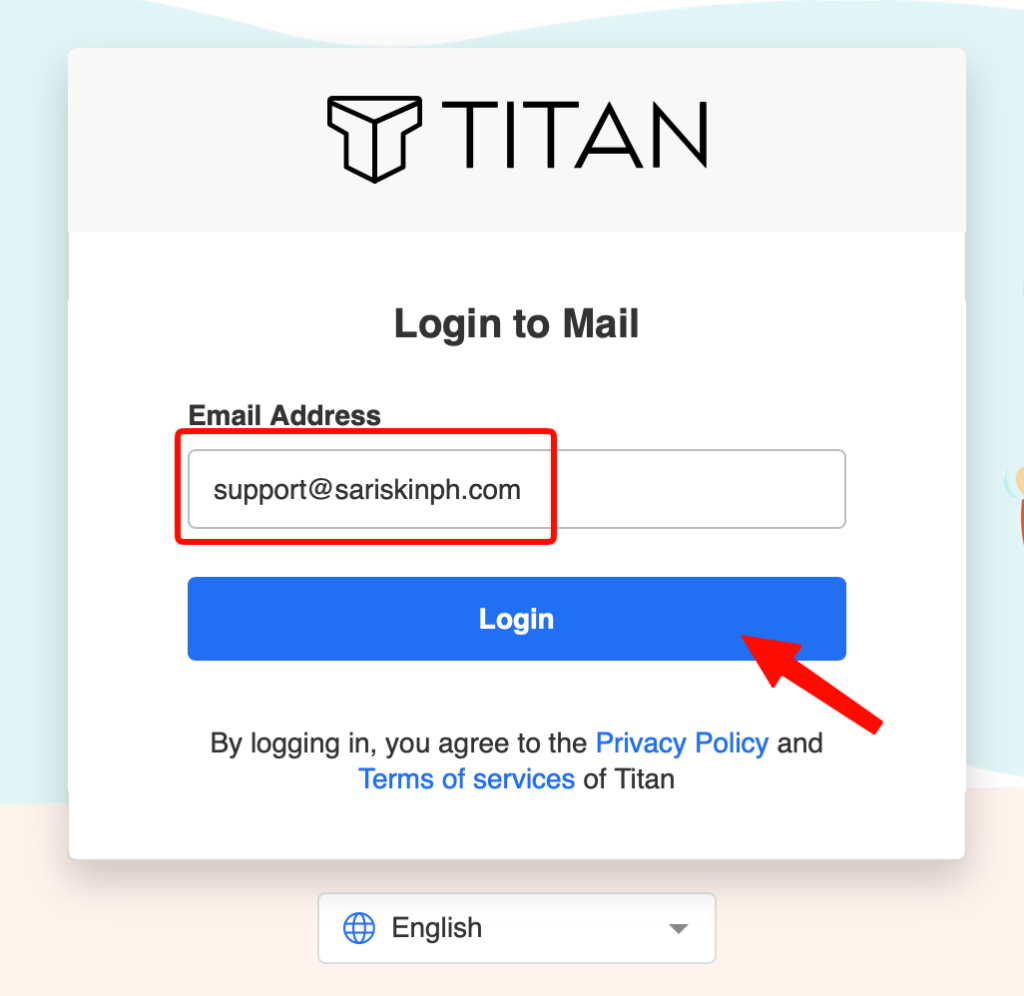
Step 2: Enter your email address and click and the Login button
Note: You will receive your email address and temporary password from support@sariskinph.com
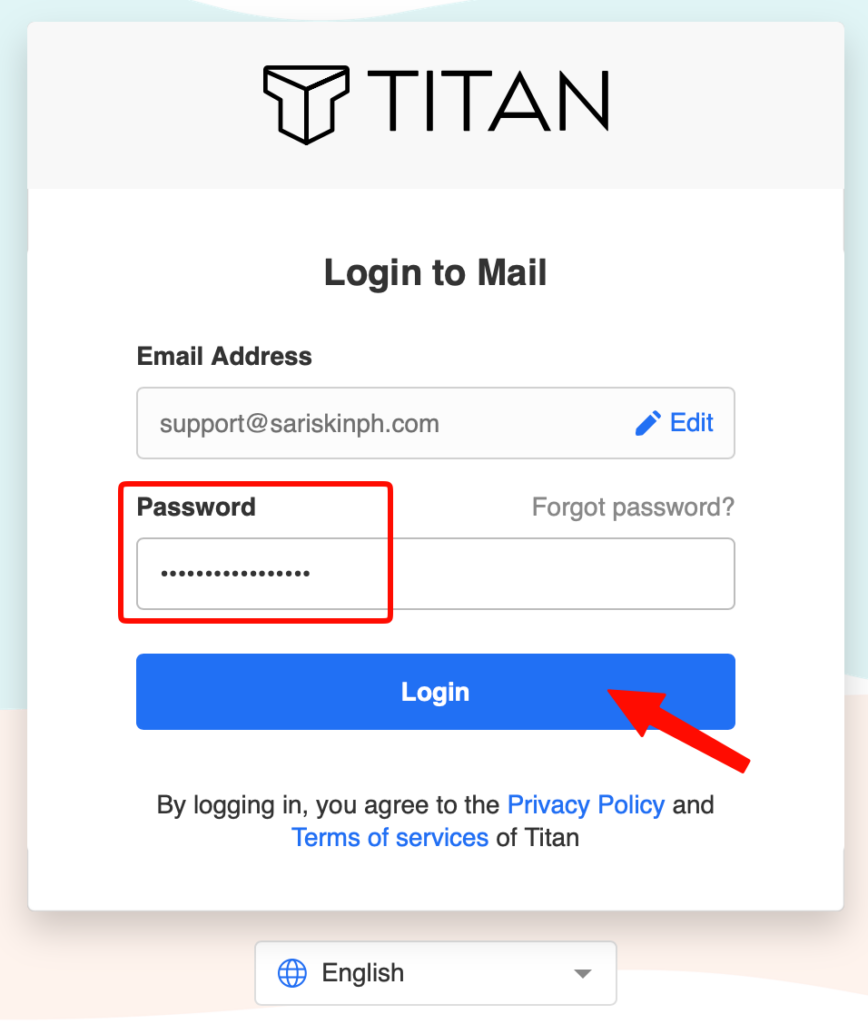
Step 3: Enter your temporary password and click the Login button
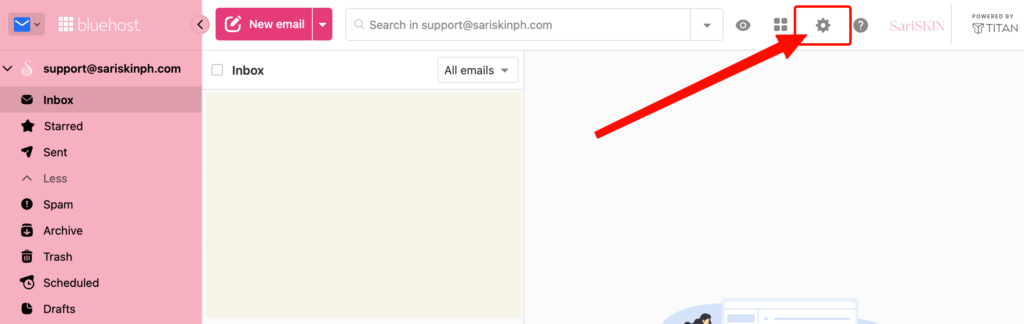
Step 4: On the upper right part of the Web Mail, click the (⚙) Settings icon
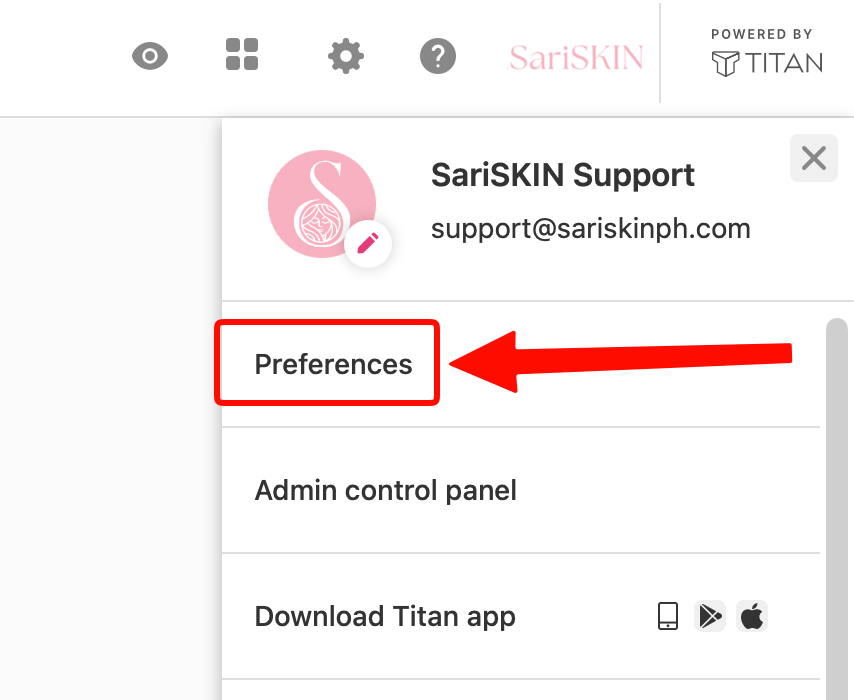
Step 5: A sidebar will appear from the right side of the page, click Preferences.
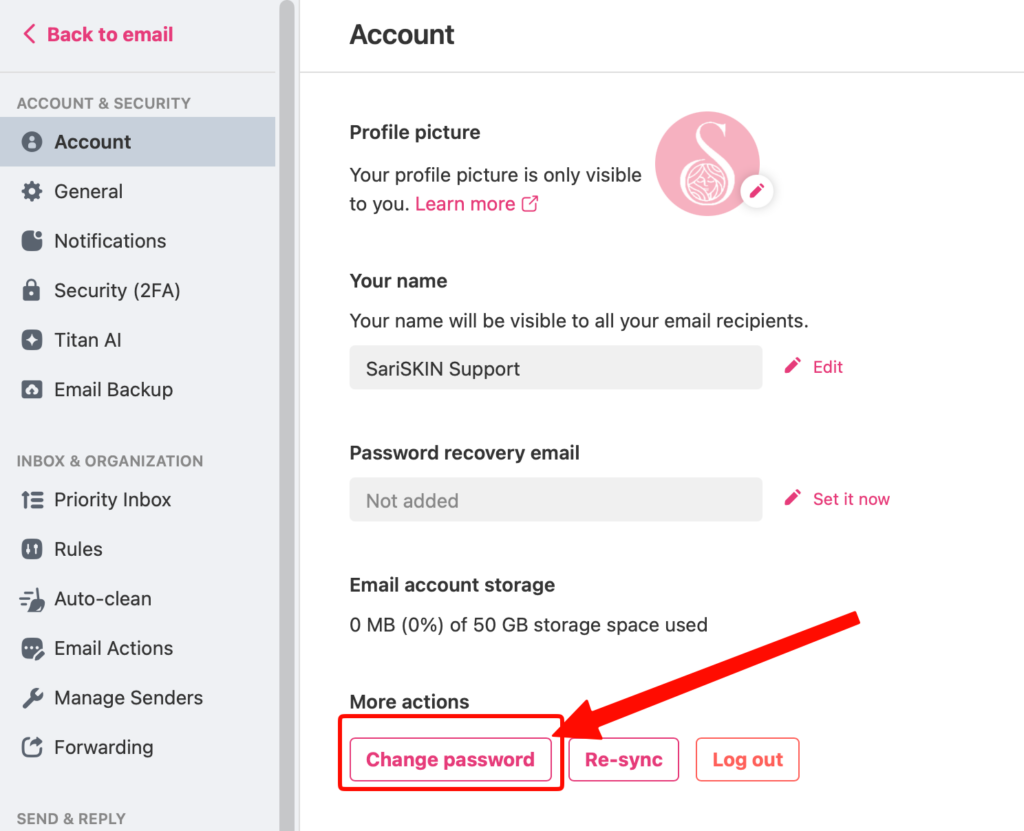
Step 6: From the “Account” section, click “Change Password”
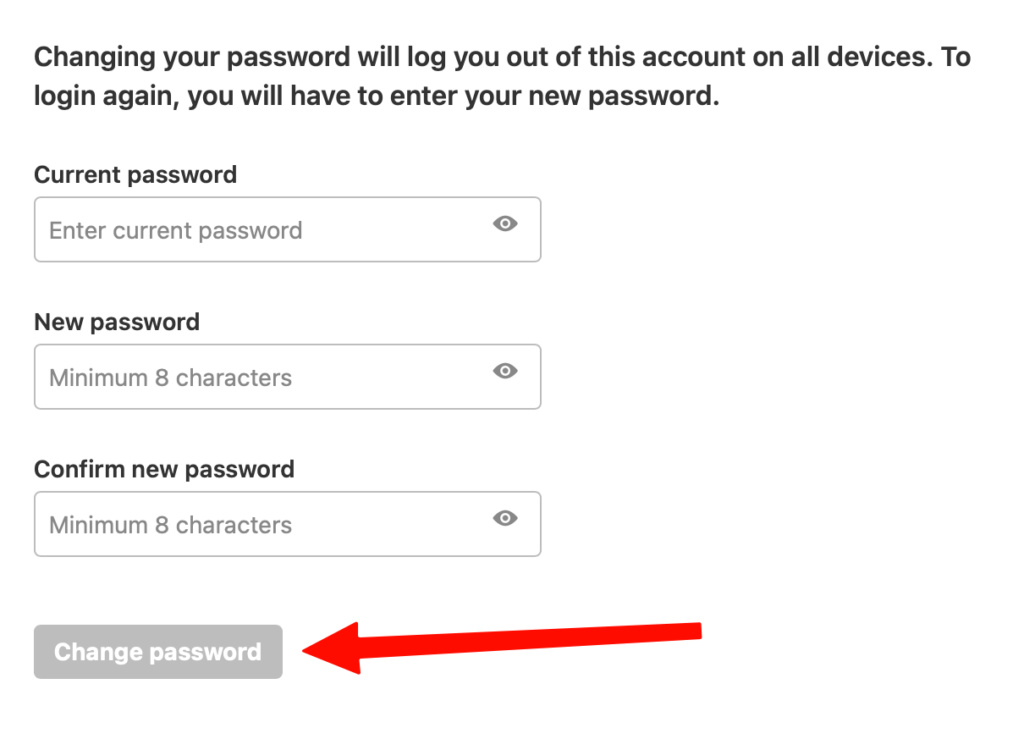
Step 7: Enter Current Password and set your new password. Click Change Password
Important reminders:
- After changing your password, admin can no longer access your mailbox.
- Admin does not have access rights to all emails in your inbox, including inbound and outbound messages.
- If you forgot your new password, you can ask the admin to reset it or submit a request to support@sariskinph.com